1 / 14
Overview and principles
Kidslen has three parts: a companion app on the child’s phone, a web dashboard for parents and guardians at app.kidslen.app, and the Kidslen service that stores the family’s data. The companion app reads the child’s watch history on connected platforms and sends titles, timestamps and durations to the server; the dashboard turns them into a live feed, charts, policies and alerts. It also logs videos opened in the built-in Kidslen browser, reports how long each app was open on an Android phone and — only with a separate consent — shares the phone’s location.
It is built around two rules that you cannot switch off:
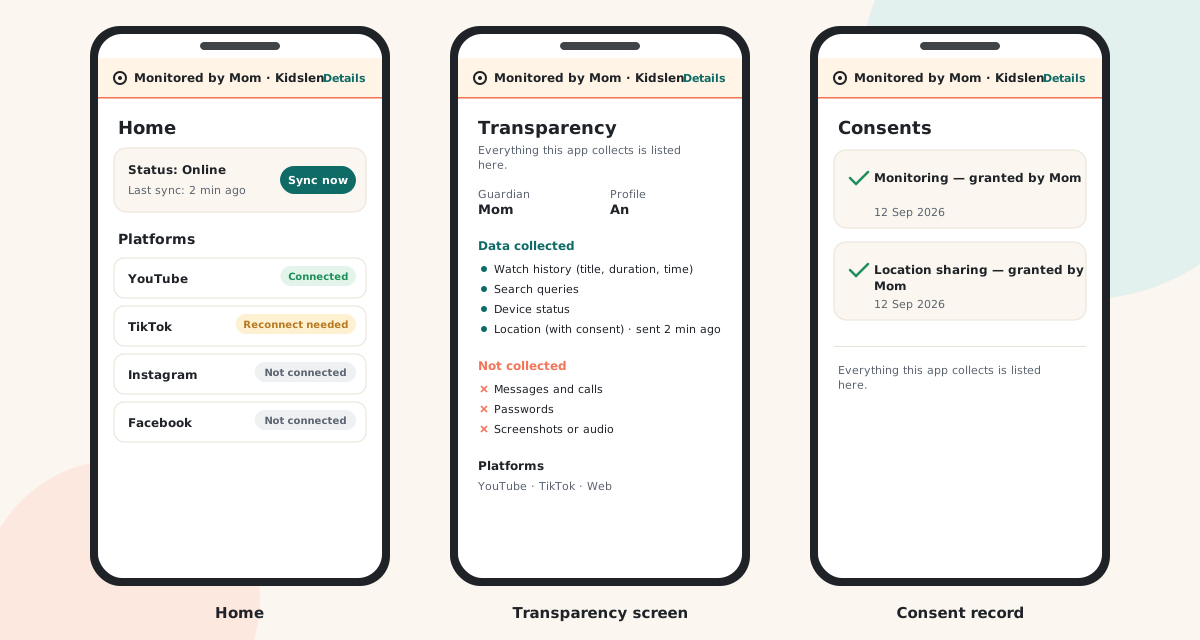
- Transparency — the companion app shows a permanent “monitored by <parent>” banner and a transparency screen that lists exactly what is collected, by whom, and what is not collected. There is no hidden, stealth or silent mode, and the app cannot be renamed or disguised.
- Consent — a consent record is created before any data is collected. The child acknowledges the transparency screen on the phone, the parent records consent in the dashboard, and both sides can see the record at any time.
Kidslen collects content titles, platform, time and duration, plus search terms where the platform exposes them; on Android, the minutes each app was in the foreground; and, only while a location consent is active, the phone’s position about every 15 minutes. It does not record the screen, read messages, or use the camera or microphone.
2 / 14
Create a parent account
The parent dashboard runs in any modern browser on a computer, tablet or phone. One account can manage several children, and several guardians can share a child (see Co-guardians).
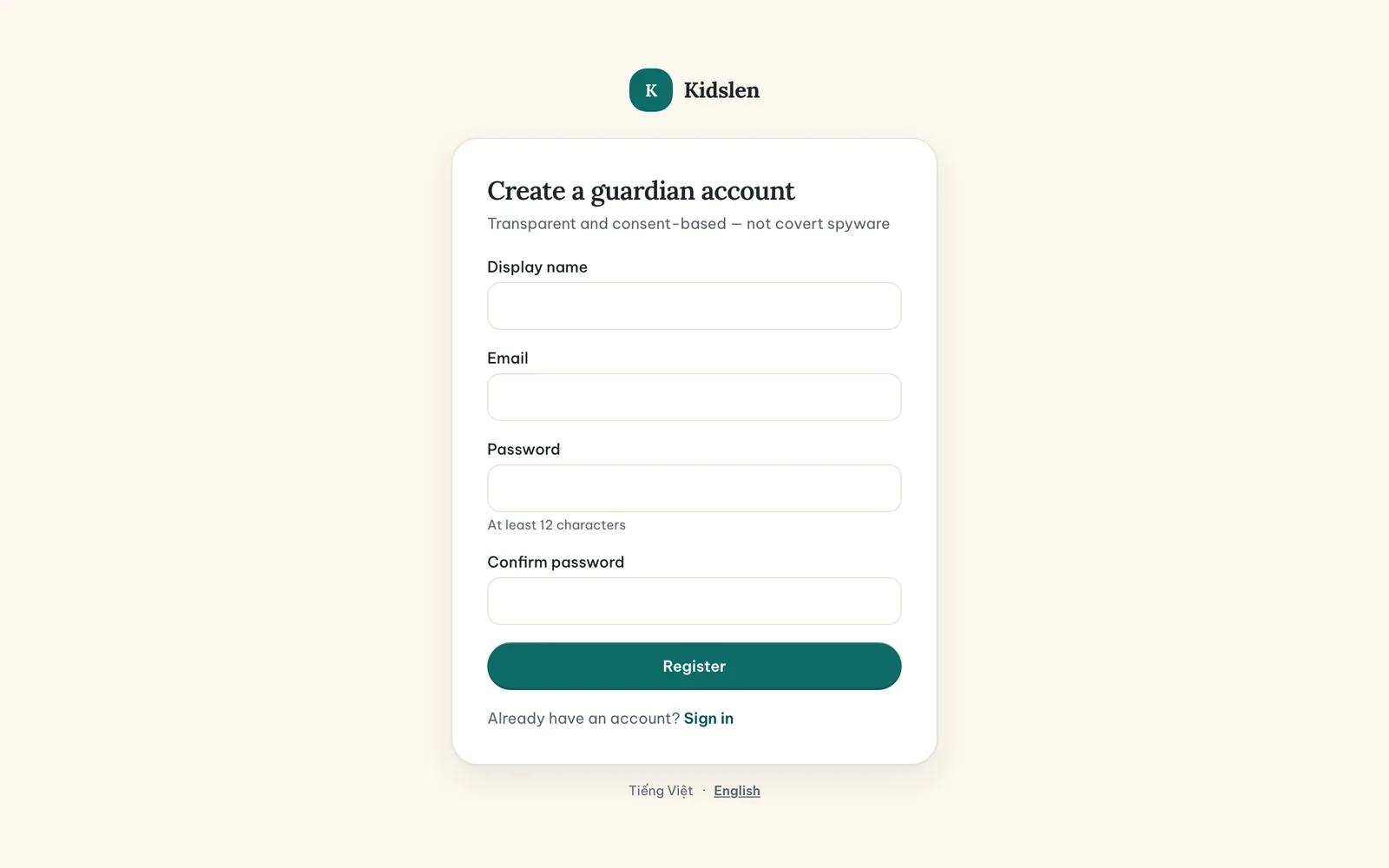
- Step 1: Open the parent dashboard at app.kidslen.app and choose Register.
- Step 2: Enter your display name — this is the name the child will see in the “monitored by” banner, so use something they recognise, such as “Mom” or your first name.
- Step 3: Enter your email address and a password of at least 12 characters, then confirm the password.
- Step 4: Choose Register. You are signed in immediately and land on the Overview page.
Signing in, and if you forget your password
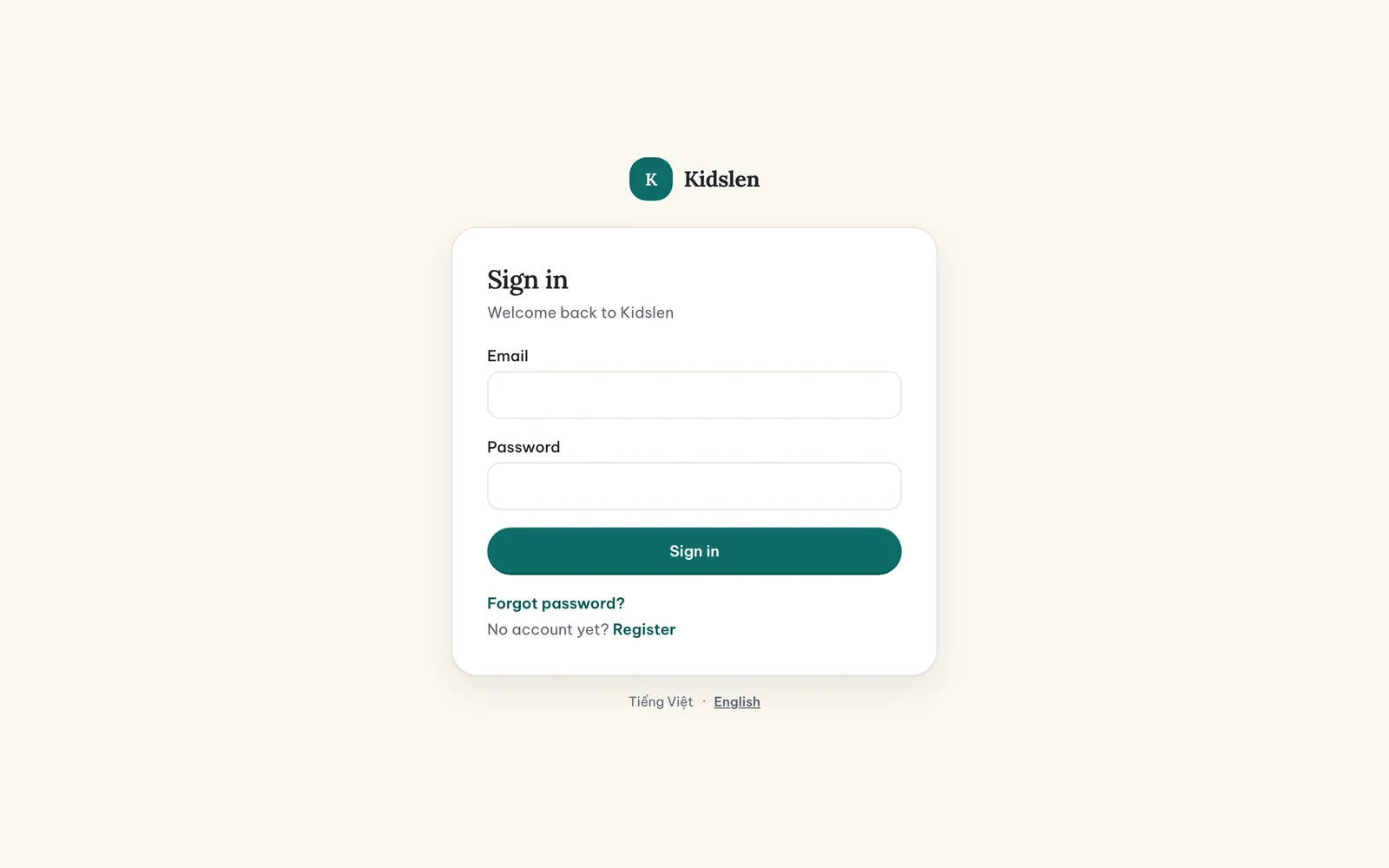
Sign in with your email and password. After five failed attempts the account is locked for 15 minutes to slow down guessing. If you forget your password, choose “Forgot password?”, enter your email, and type the six-digit code you receive together with a new password.
3 / 14
Add a child and record consent
A child profile needs only a first name or nickname and, optionally, a birth date. No email, phone number or ID is required for a child.
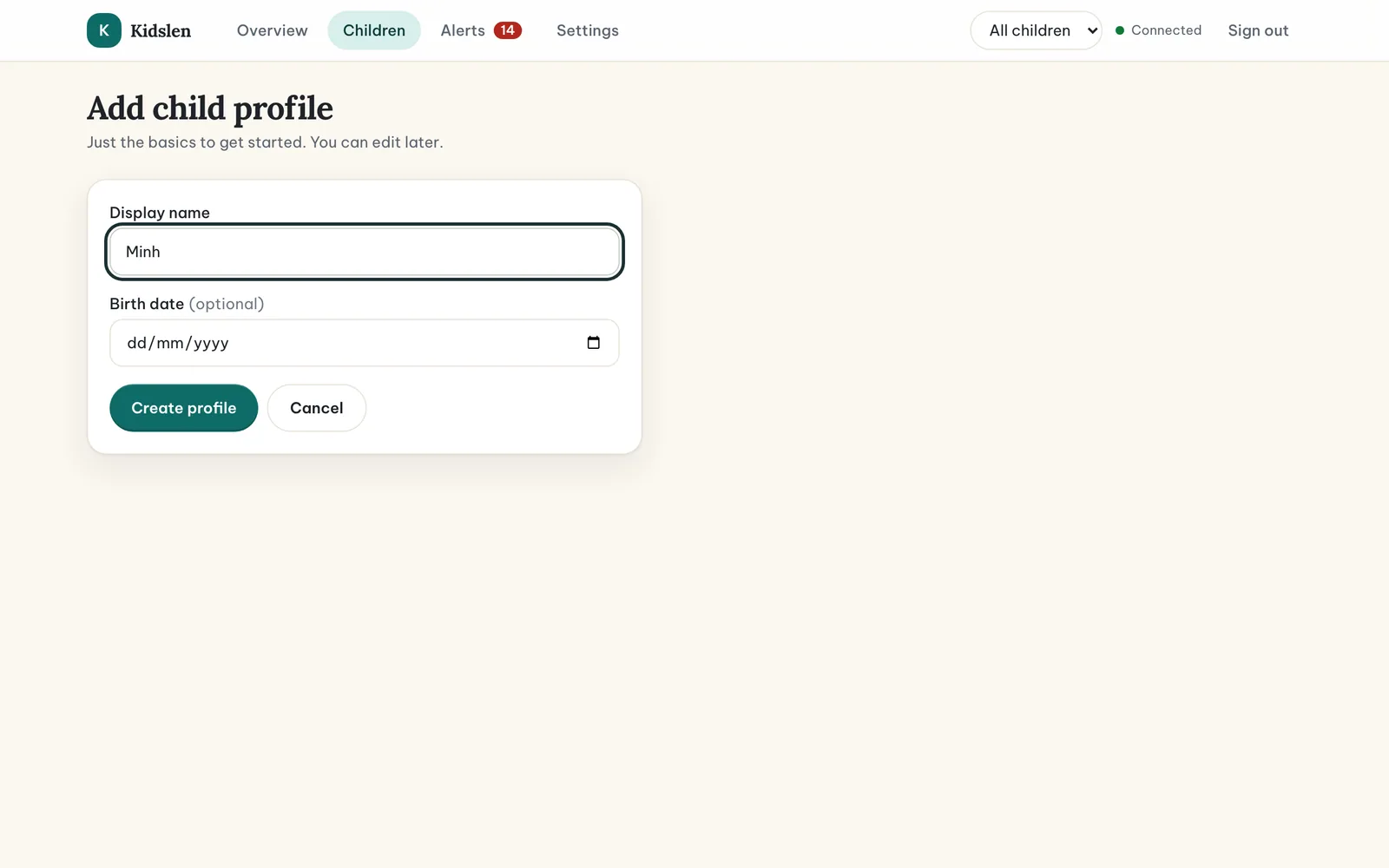
- Step 1: On the Overview page choose Add child (or open Children in the top bar and choose Add child).
- Step 2: Enter the display name and, if you like, the birth date. Choose Create profile.
- Step 3: You land on the child’s page. It has tabs for Activity, Summary, Location, Policies, Devices, Consents, Privacy and Guardians — this guide covers each of them.
Record consent
Open the Consents tab and choose Add consent. There are four kinds of record: consent to monitoring, consent to data collection, consent to platform access and consent to location sharing — the last one switches location on and is described in Location and safe zones. In “Granted by”, write who gave the consent — your own name as the parent or guardian, or the child’s name for a teenager who agreed themselves. The date and time are stored automatically.
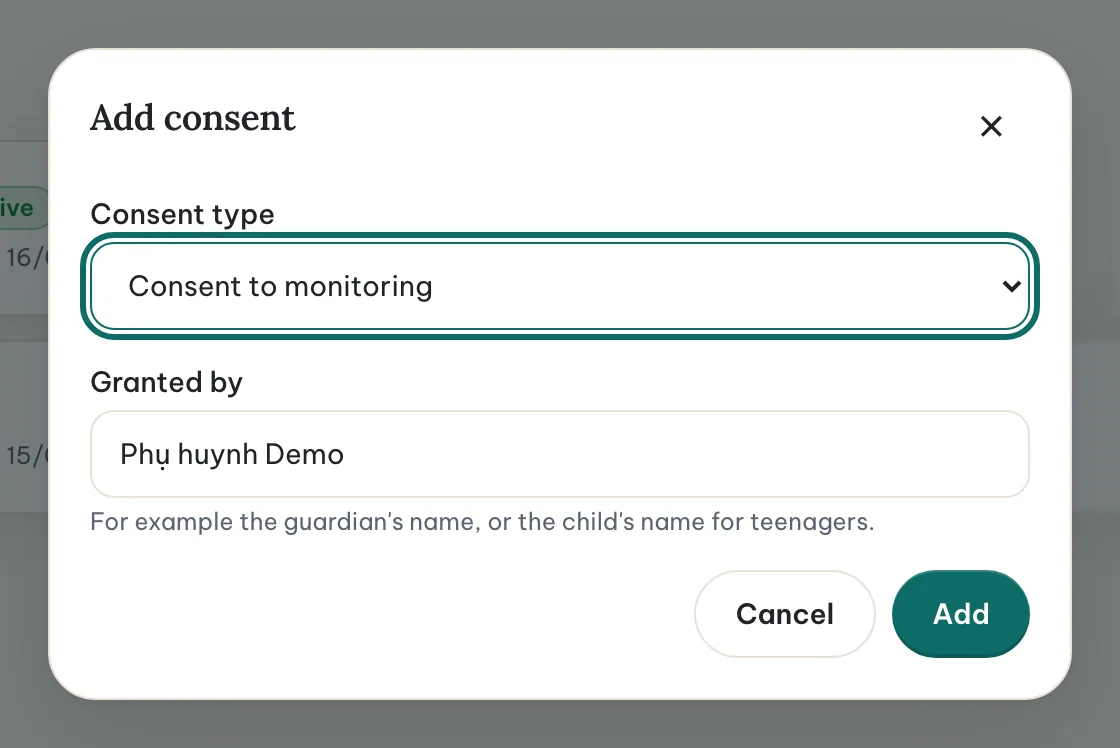
Every consent record is shown on the child’s transparency screen in the companion app. You can revoke a record at any time; the revocation is dated and written to the audit log.
4 / 14
Enroll the child’s phone
Enrollment links the companion app on the child’s phone to the child profile. It uses a one-time code so that only a signed-in parent can pair a device, and it always happens on the child’s phone, with the child present.
- Step 1: Install the Kidslen companion app on the child’s phone (iOS or Android).
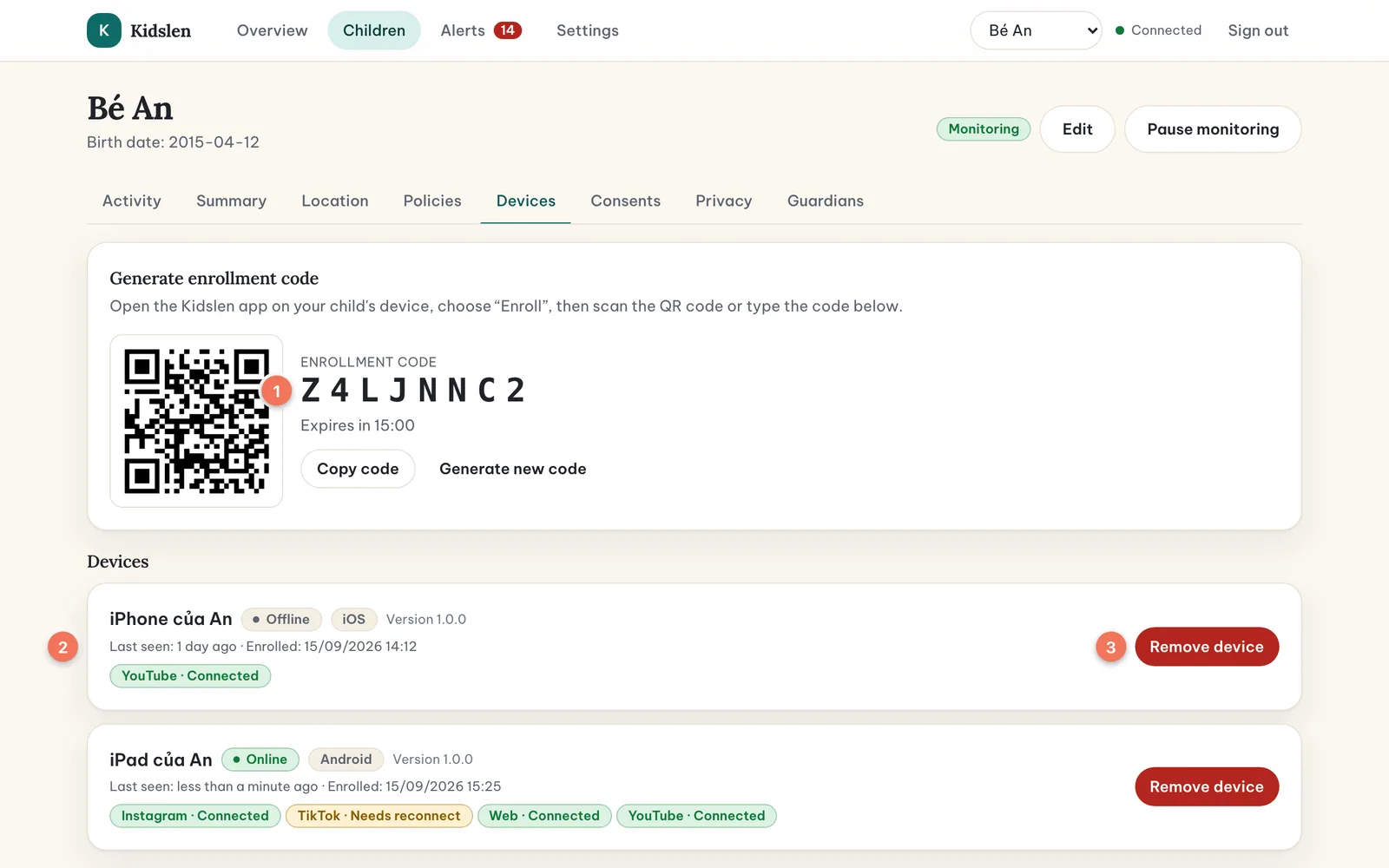
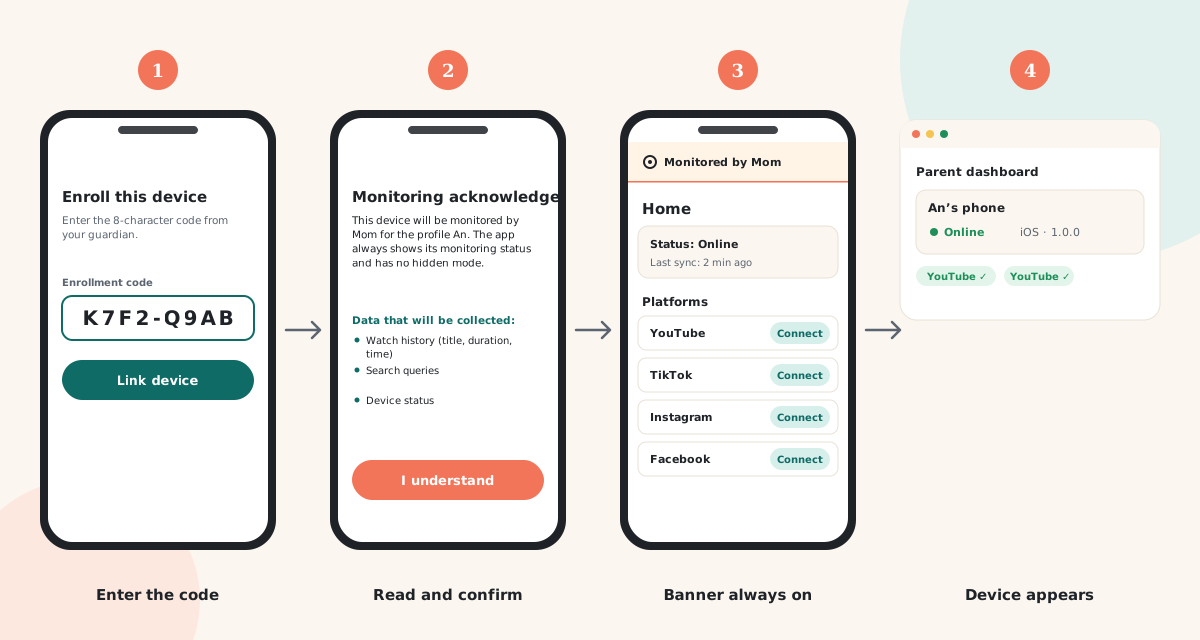
- Step 2: In the dashboard, open the child’s page, then the Devices tab, and choose Generate enrollment code. An eight-character code and a QR code appear; the code is valid for 15 minutes.
- Step 3: On the phone, open the Kidslen app. It starts on the “Enroll this device” screen. Type the code or scan the QR code, then tap Link device.
- Step 4: The phone shows the monitoring acknowledgement: who will monitor this device (your display name), for which profile, and the list of data that will be collected. The child reads it and taps “I understand”. The app does not continue until this is confirmed.
- Step 5: Back in the dashboard the device appears in the Devices tab within a few seconds, with its name, operating system and app version.
What the child sees
- Banner — from the moment the device is enrolled, a banner reading “Monitored by <your name>” is shown at the top of the app. It has no close button. Tapping “Details” opens the transparency screen.
- Transparency screen — lists the guardian, the profile, the device and the enrollment date; the data collected (watch history, search queries, device status and, once you have recorded a location consent, the phone’s location with the time it was last sent); what is not collected (messages, calls, passwords, screenshots, audio); the connected platforms; and every consent record.
- “I understand” — the acknowledgement step during enrollment. It is recorded with the app version that was shown.
- Settings — the child can see the app version, permissions, and can unenroll the device (which wipes local data and shows the device as offline to you). Nothing about Kidslen is hidden from them.
5 / 14
Connect platforms
Kidslen supports YouTube, TikTok, Instagram and Facebook. Platforms are connected on the child’s phone, inside the companion app, by signing in to the child’s own account. Kidslen keeps only the session cookies needed to read watch history; it never stores the password.
- Step 1: In the companion app, open Home. Each platform is listed with its status: Not connected, Connected, or Reconnect needed.
- Step 2: Tap Connect next to a platform. A sign-in page for that platform opens inside the app.
- Step 3: Sign in with the child’s account (with the child, so they know which account is shared). If the account has several profiles, choose the child’s profile.
- Step 4: When the app shows “<Platform> connected”, the platform appears as Connected in the dashboard under Devices and in the child’s list of connected platforms.
When a platform says “Needs reconnect”
Platforms sign sessions out from time to time, or after a password change. When that happens the status changes to “Needs reconnect”, Kidslen stops collecting from that platform, and you get a “Platform needs reconnect” alert. On the phone, tap Reconnect next to the platform and sign in again.

To stop sharing a platform, tap Disconnect in the app. The stored cookies are deleted from the phone and the platform status becomes Disconnected.
6 / 14
Reading the dashboard
Overview
The Overview page is your daily starting point. Each child has a card with today’s watch time against the daily limit (if you set one), how many of their devices are online, and the number of unread alerts. Below, a chart shows total minutes per day over the last seven days, and the Live activity panel lists new activity as it arrives.
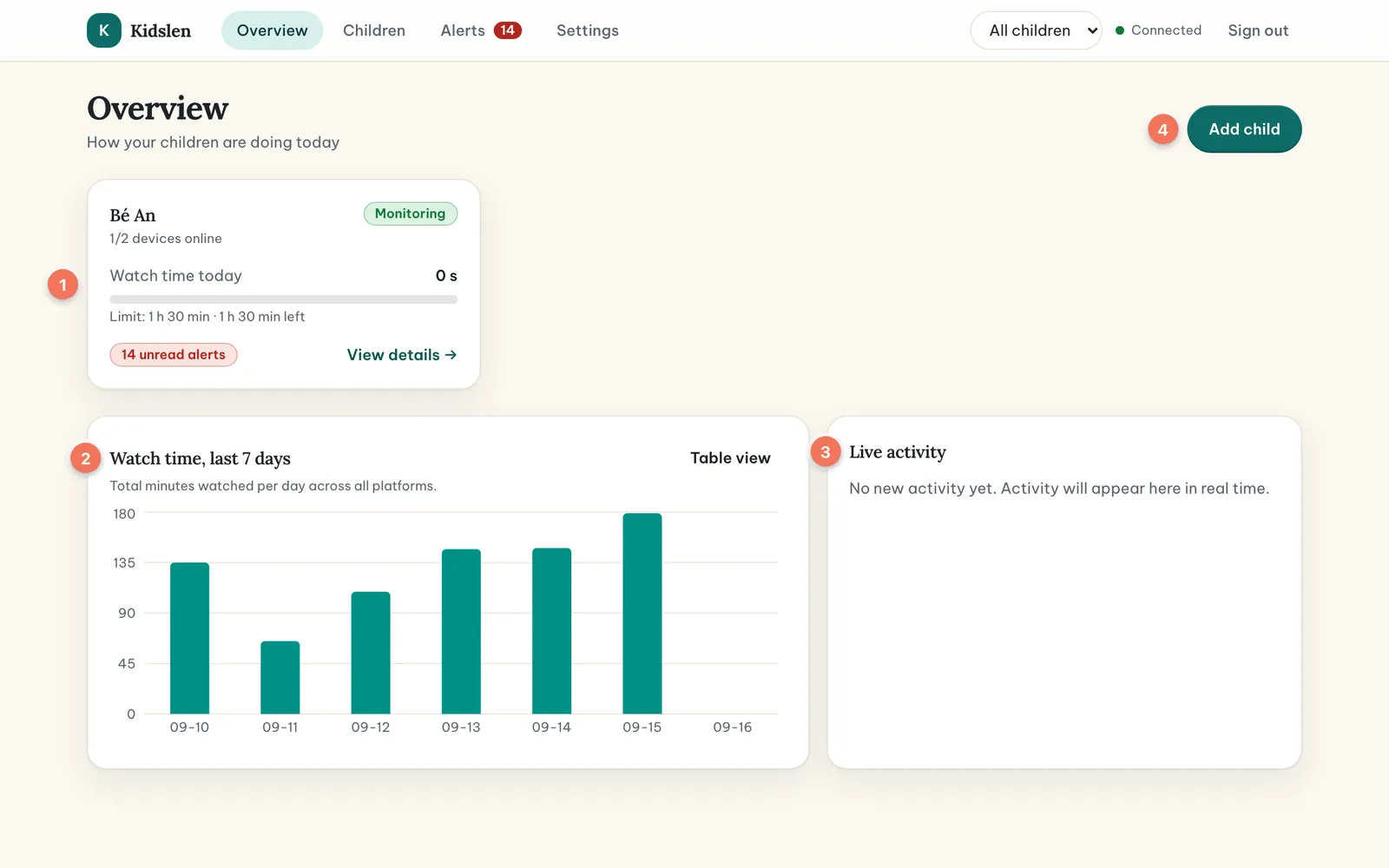
- Child switcher — the drop-down in the top bar limits every page to one child, or shows all children.
- Connection status — “Connected” next to the switcher means the dashboard is receiving live updates. If it shows “Reconnecting”, the dashboard is retrying; nothing is lost, the activity is still stored on the server.
- “Table view” next to the chart switches the seven-day chart to a table, which is easier to read with a screen reader.
Live feed
The companion app syncs in the background (every 30 minutes by default) and whenever the child taps “Sync now”. Each synced item appears in the Live activity panel a few seconds later, with the child’s name, the platform, the title and the duration. The feed keeps the latest 50 items; older activity is in the child’s Activity tab.
Activity tab
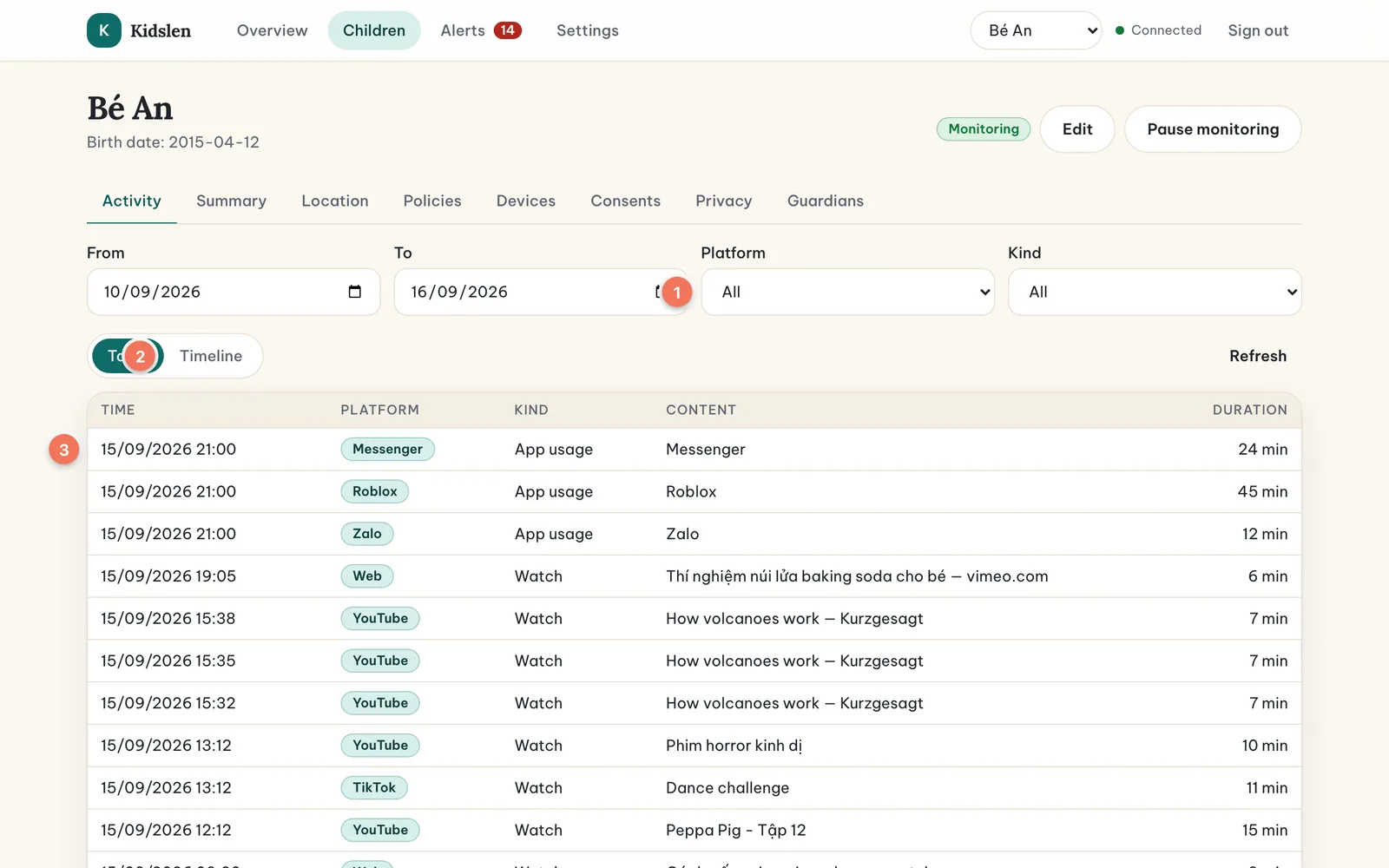
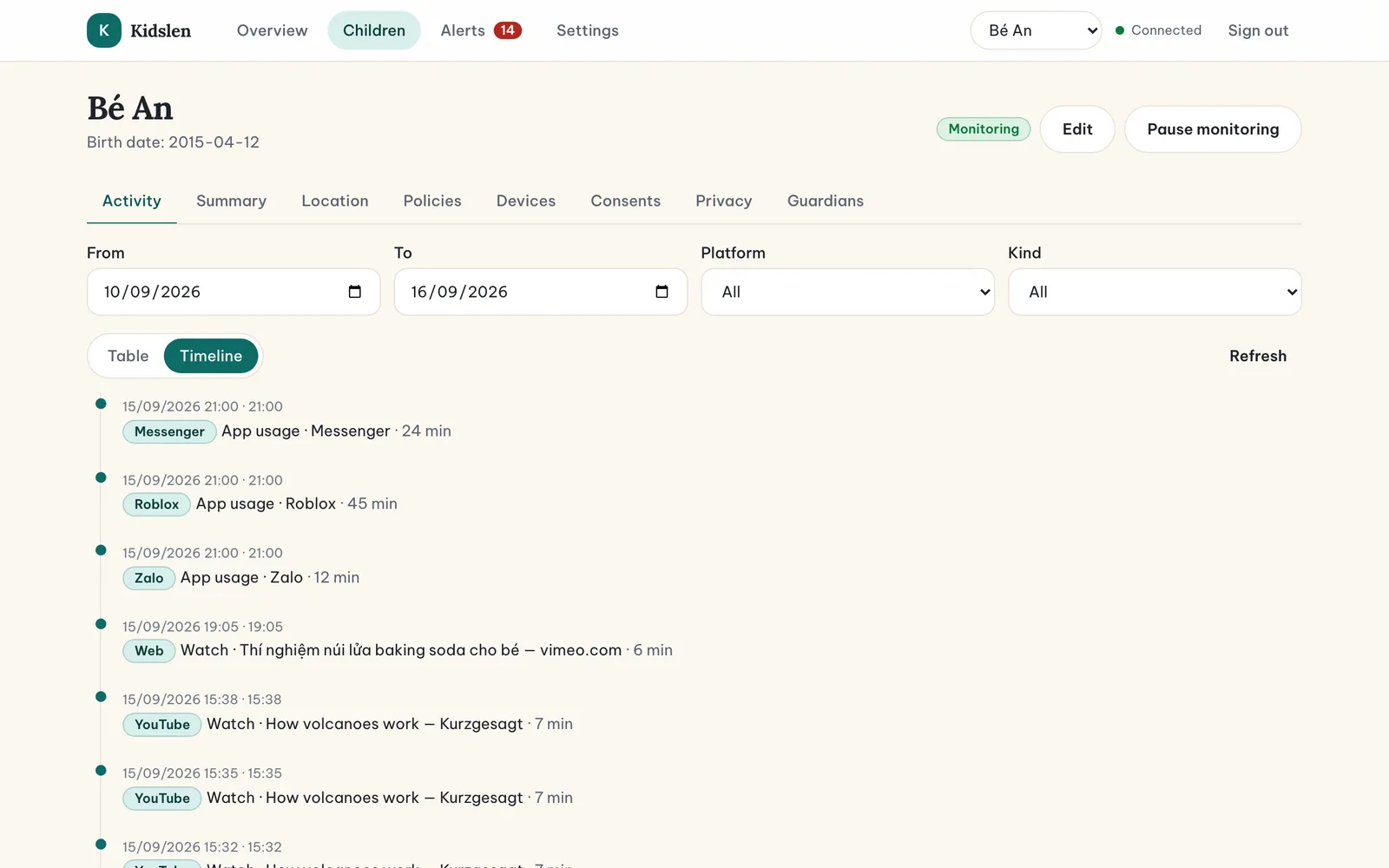
Open a child and you start on Activity: a table of every item in the selected date range with time, platform, kind (Watch, App usage or Search), title and duration. Filter by date, platform or kind, switch to the Timeline view for a chronological reading, and page through with the controls at the bottom (25 items per page). Videos the child opens in the Kidslen browser (platform “Web”) appear as ordinary rows with the video title and the website, for example “Paper crane origami — youtube.com”.
Summary charts
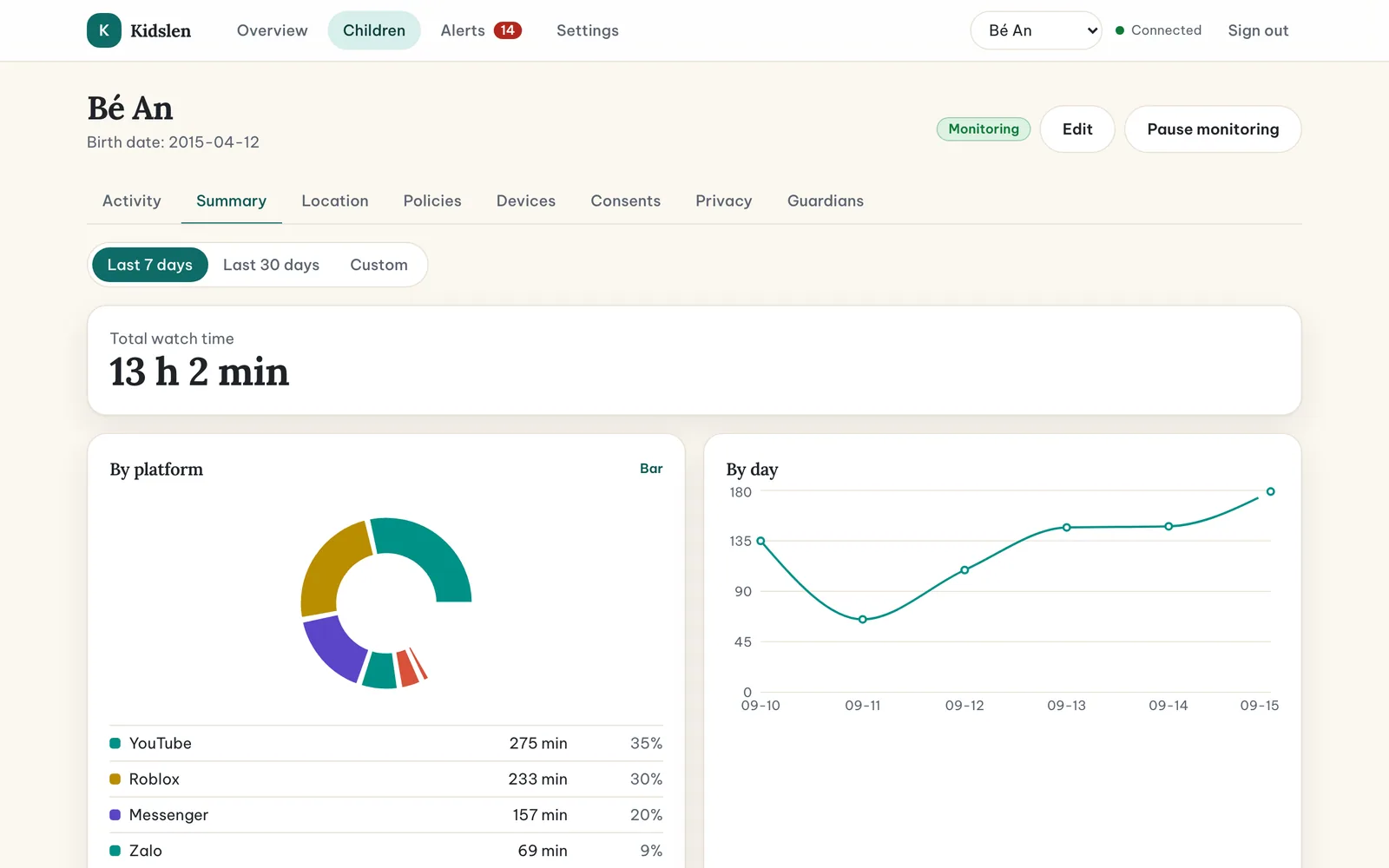
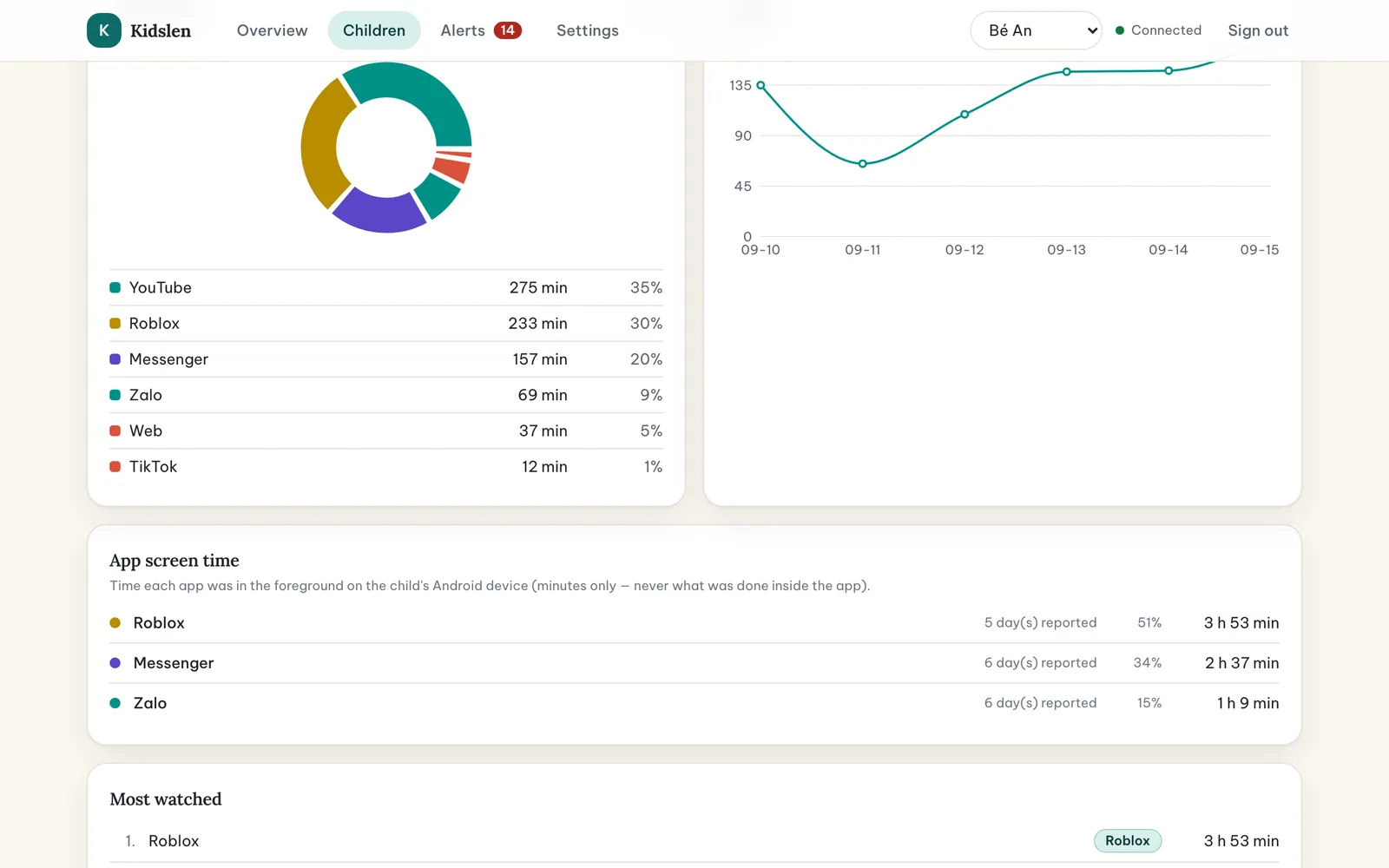
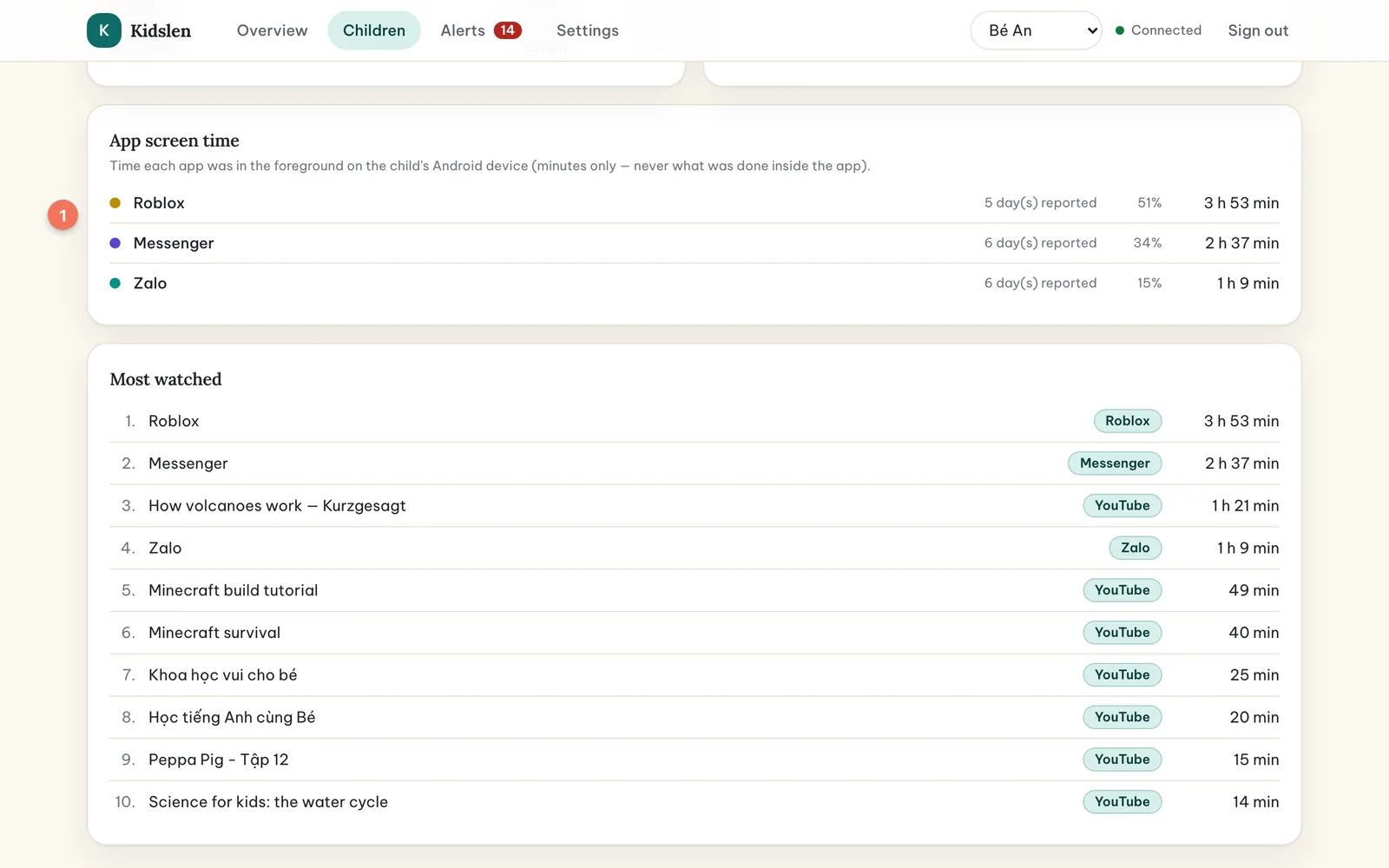
The Summary tab answers “where do the hours go?”. Choose the last 7 days, the last 30 days or a custom range. You get the total watch time, a breakdown by platform (as a pie or a bar chart, with the share of each platform), watch time by day, and the most-watched titles. Below the charts, the “App screen time” card lists how many minutes each app was in the foreground on the child’s Android phone — Messenger, Roblox, Zalo and so on — as reported by the system. Kidslen sees only the minutes, never what happened inside the app.
7 / 14
Policies
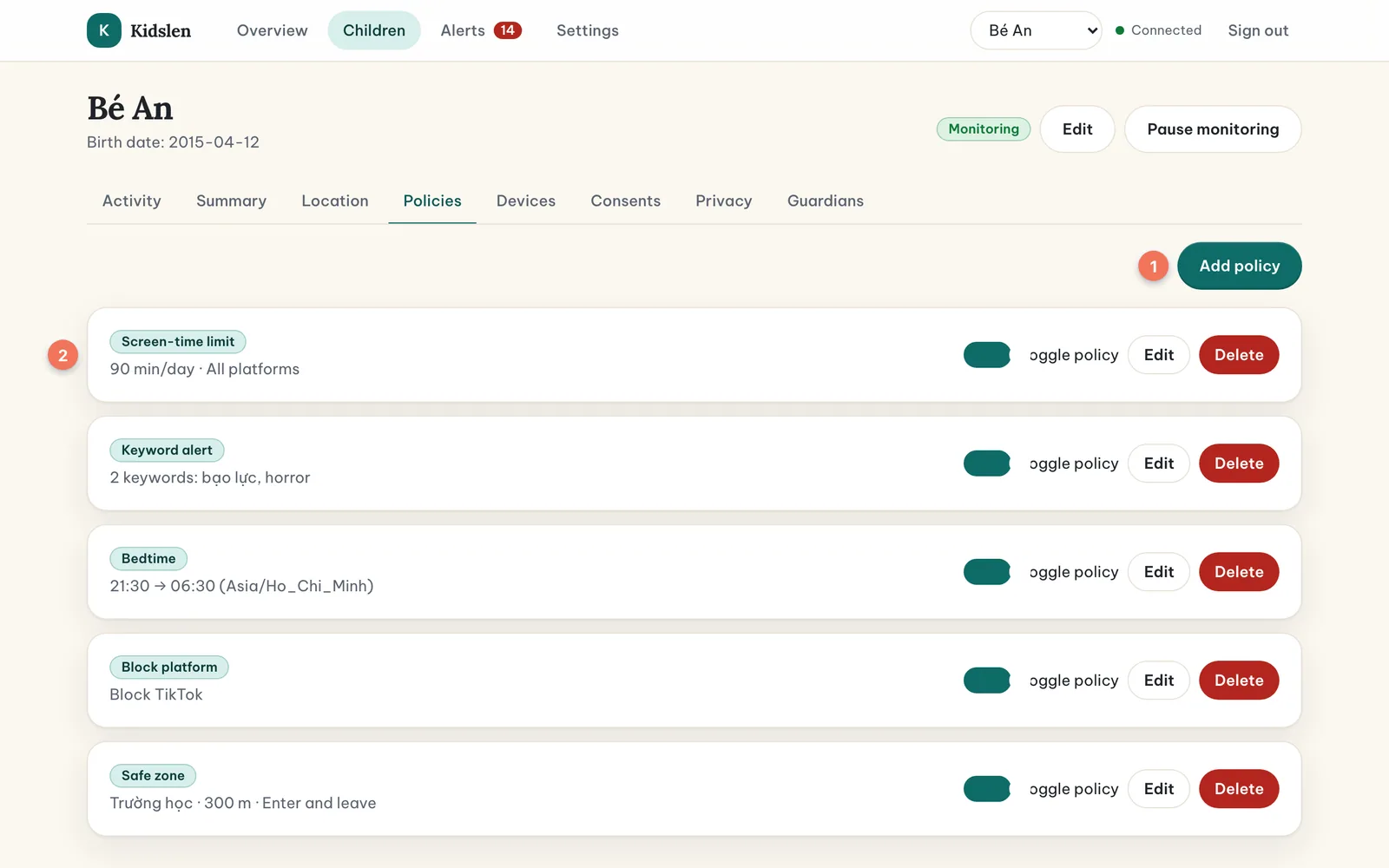
Policies are the family’s rules. Kidslen evaluates them every time new activity arrives — or, for safe zones, every time a new position arrives — and raises an alert when a rule is triggered. There are five kinds. Policies do not block the phone or the platform themselves — they make what happens visible, to you and to the child, who sees the same rules on the transparency screen.
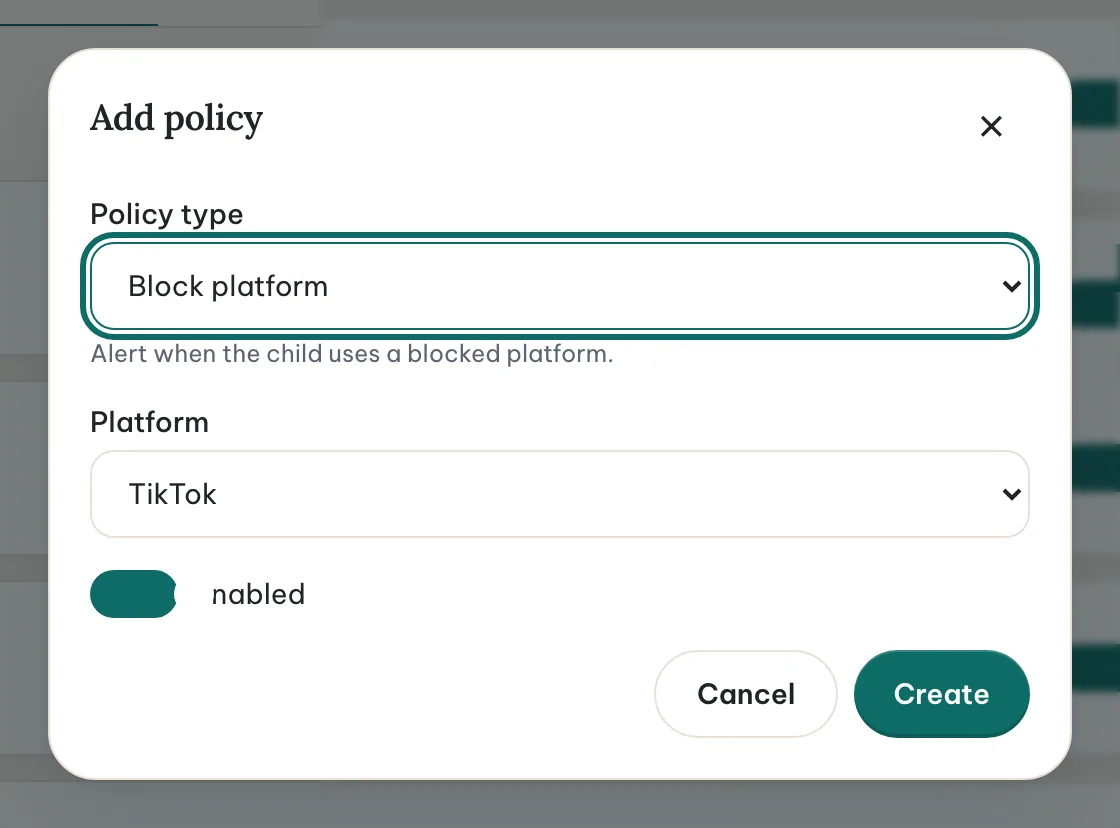
Open the child’s Policies tab and choose Add policy. Pick a type, fill in its settings, leave Enabled switched on and choose Create. You can edit, disable or delete a policy later from the same list.
| Policy type | Settings | When it alerts |
|---|---|---|
| Screen-time limit | Minutes per day; one platform or all platforms | When the day’s watch time exceeds the limit (once per day) |
| Bedtime | Start and end time, timezone | When there is activity inside the window (once per day) |
| Block platform | The platform | When the child uses that platform (once per day) |
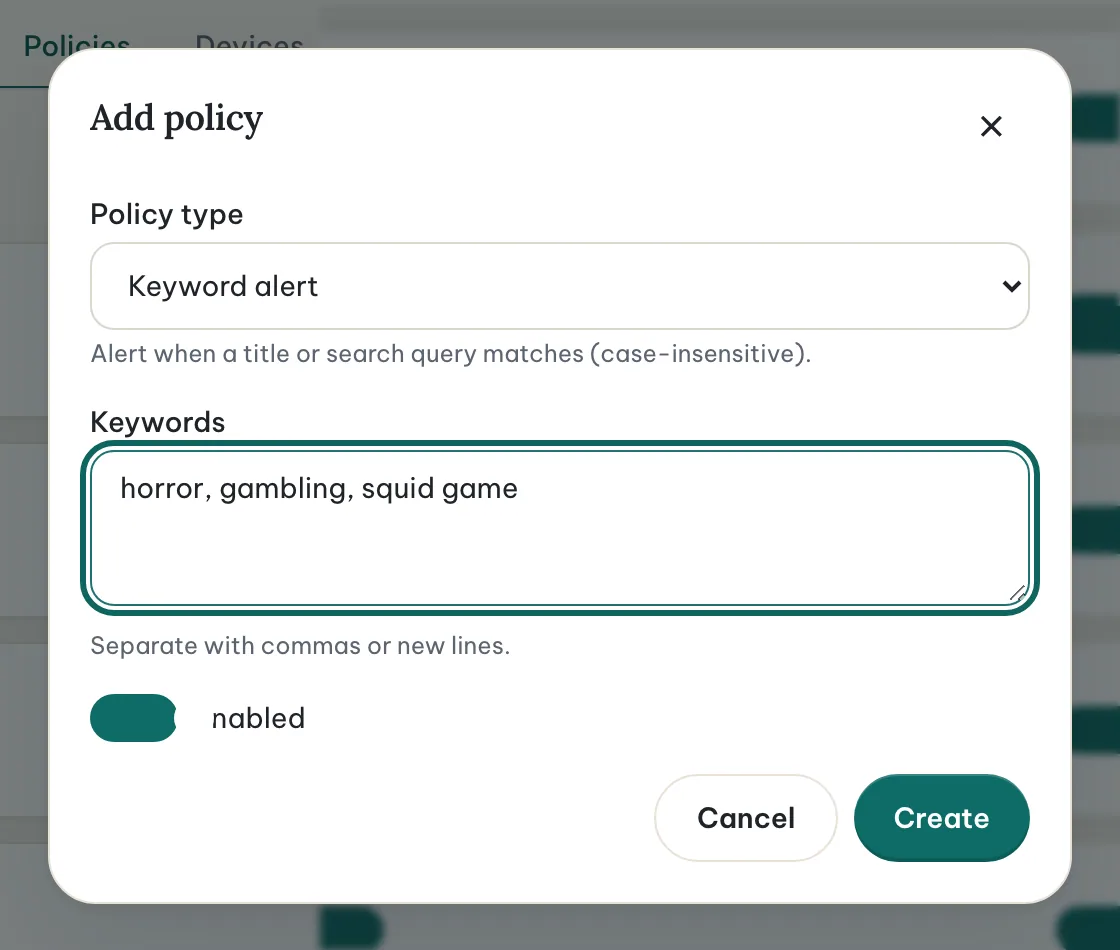
| Keyword alert | A list of words or phrases | Every time a title or search query contains one of them (case-insensitive) |
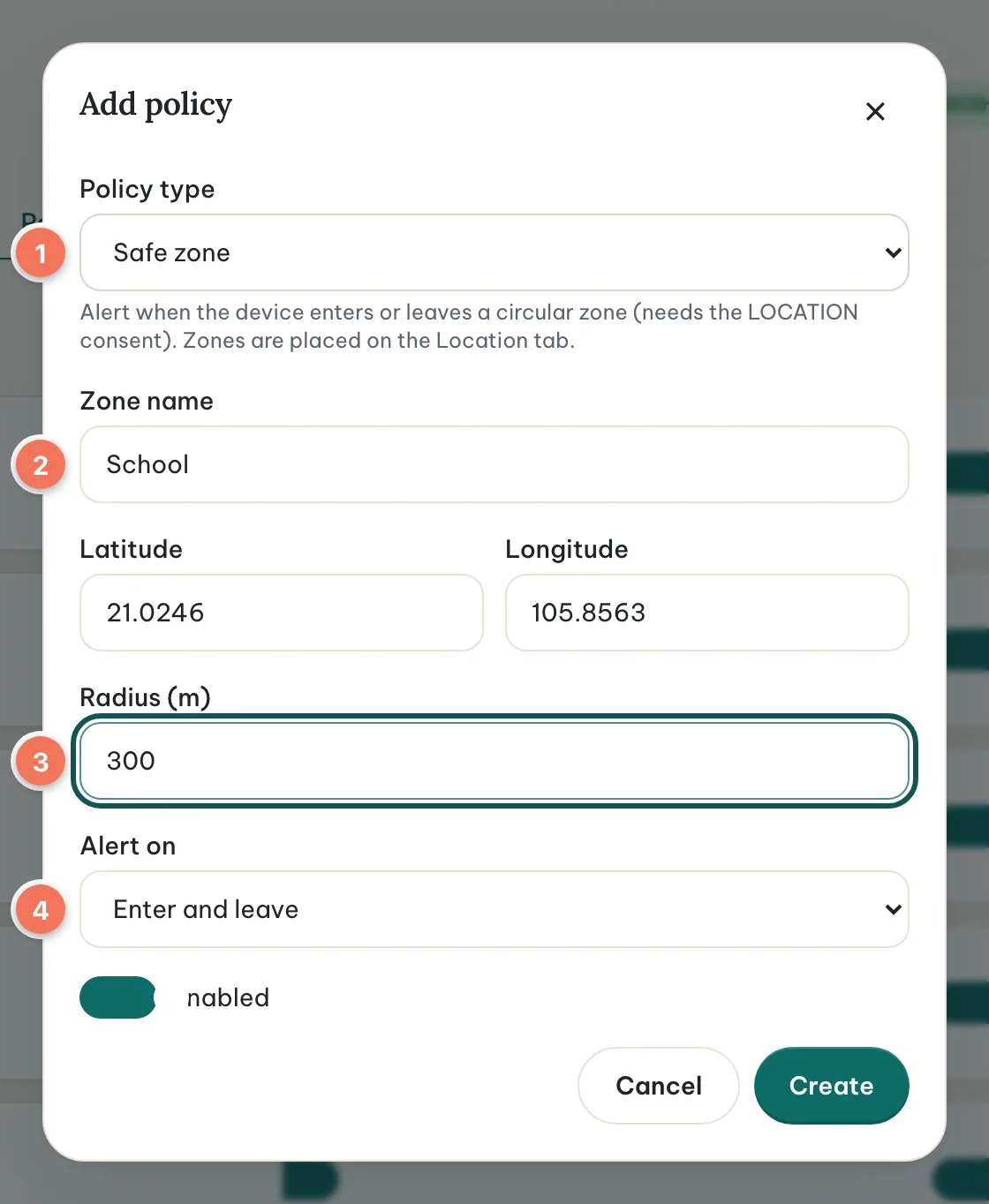
| Safe zone | Name, centre and radius (50–5000 m) on the map; alert on enter, leave or both | When the phone enters or leaves the zone — needs the location consent (see Location and safe zones) |
Example: a daily screen-time limit
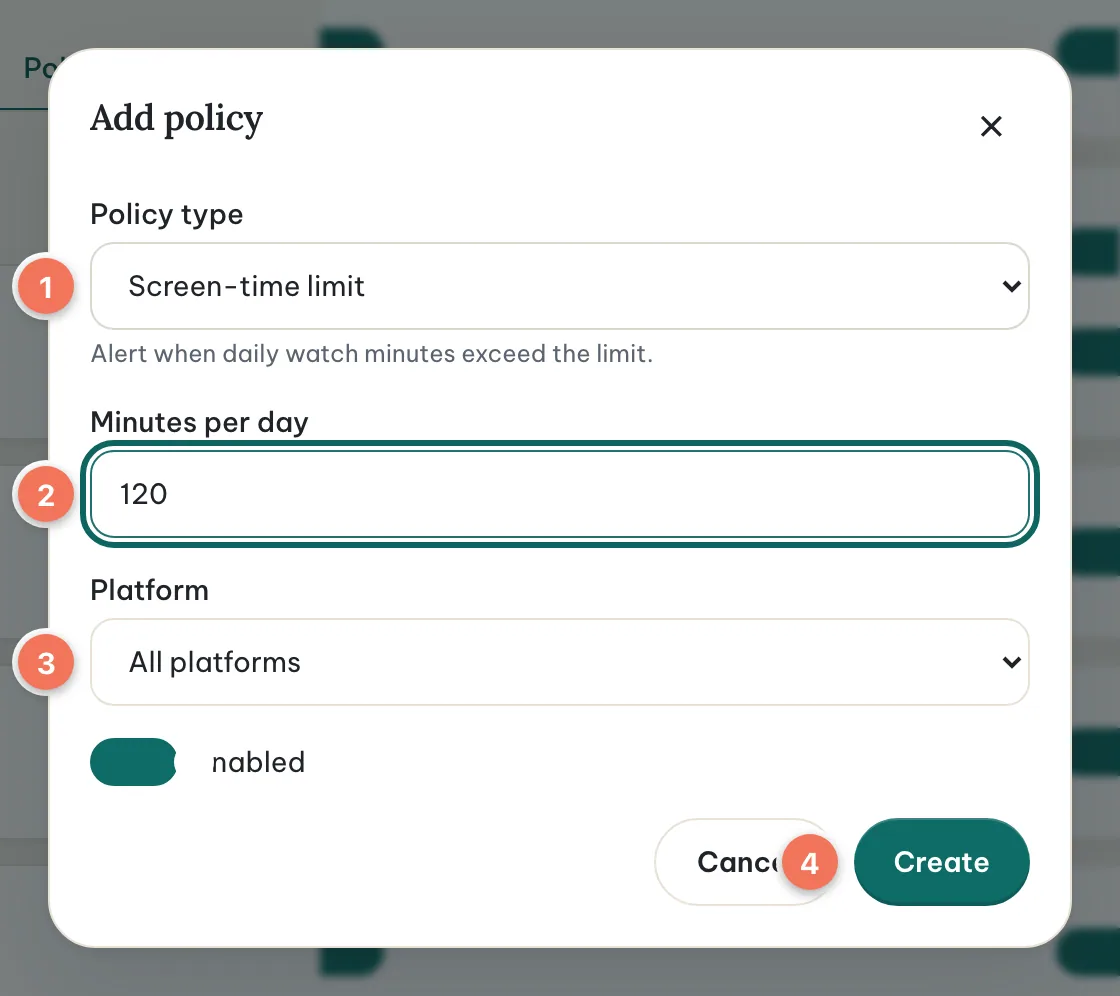
- Step 1: Choose Add policy and keep the type “Screen-time limit”.
- Step 2: Enter 120 in “Minutes per day” and leave the platform on “All platforms”. To limit only one platform — say, 45 minutes of YouTube — pick that platform instead; you can have both an overall limit and per-platform limits.
- Step 3: Choose Create. From now on the Overview card shows progress towards the limit and turns red when it is exceeded.
Example: bedtime
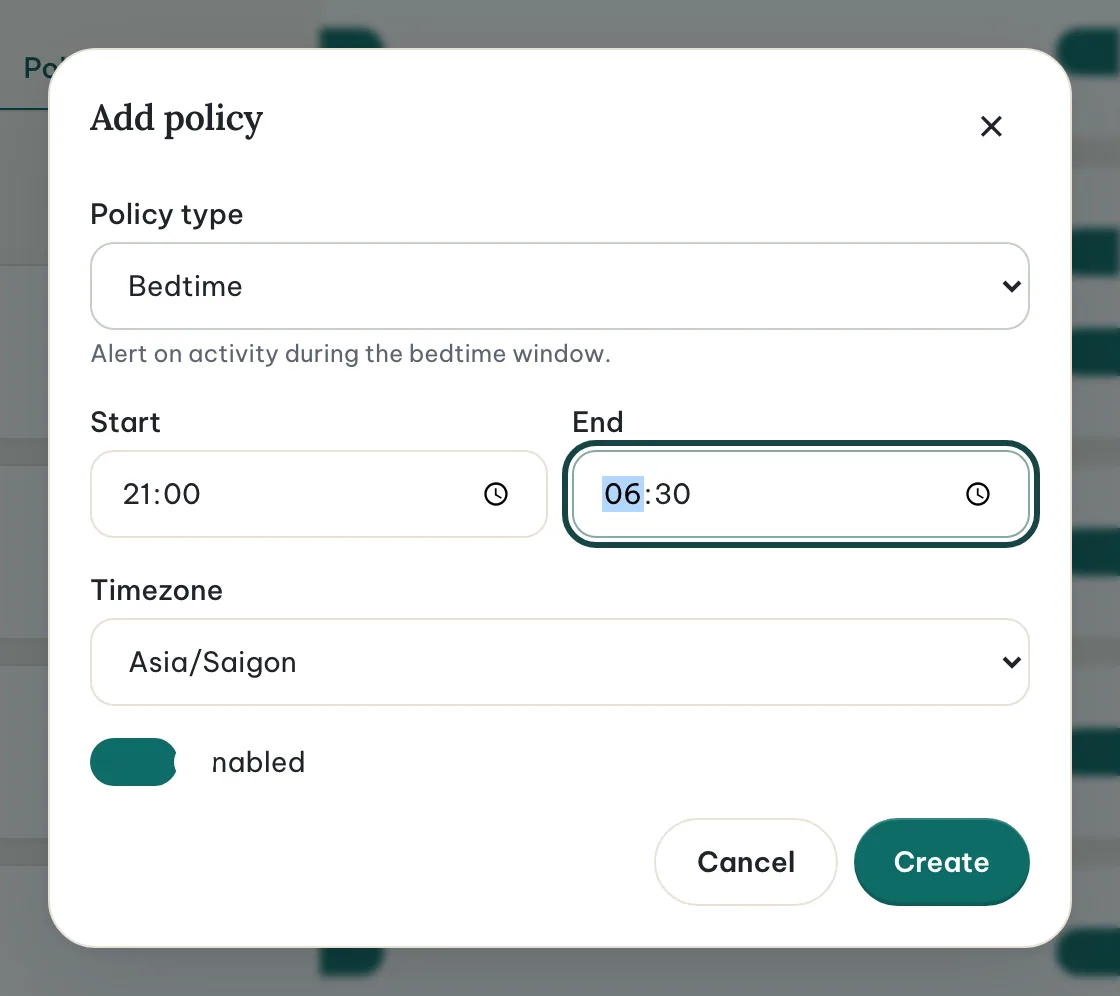
Choose the type “Bedtime”, set the start and end time — for example 21:00 to 06:30 — and check the timezone. Activity between those times raises a “Bedtime violation” alert.
Example: block a platform
Choose “Block platform” and pick the platform, for example TikTok. Any activity on it raises a “Blocked platform used” alert with the title that was watched.
Example: keyword alerts
Choose “Keyword alert” and enter the words to watch for, separated by commas or new lines — for example “horror, gambling, squid game”. Matching ignores upper and lower case and looks at titles and search queries. Each match produces its own alert with the matched title.
8 / 14
Location and safe zones
The Location tab shows where the child’s phone is — on a map, with the latest position, the trail for the selected period and the safe zones you have drawn. It is optional: nothing is collected until you record a consent to location sharing, and the child sees on the transparency screen of the companion app that location is shared and when the last position was sent.
Turning it on
- Step 1: Open the child’s Consents tab, choose Add consent, pick “Consent to location sharing” and write who agreed. Talk it through with your child first — location is the most personal data Kidslen handles.
- Step 2: The companion app picks up the new setting at its next check-in and, with the phone’s location permission granted, sends a position about every 15 minutes while the phone is on — more often only when the child taps “Sync now”.
- Step 3: Open the Location tab. Until the first point arrives it reads “Consent recorded — waiting for the first point from the device”.
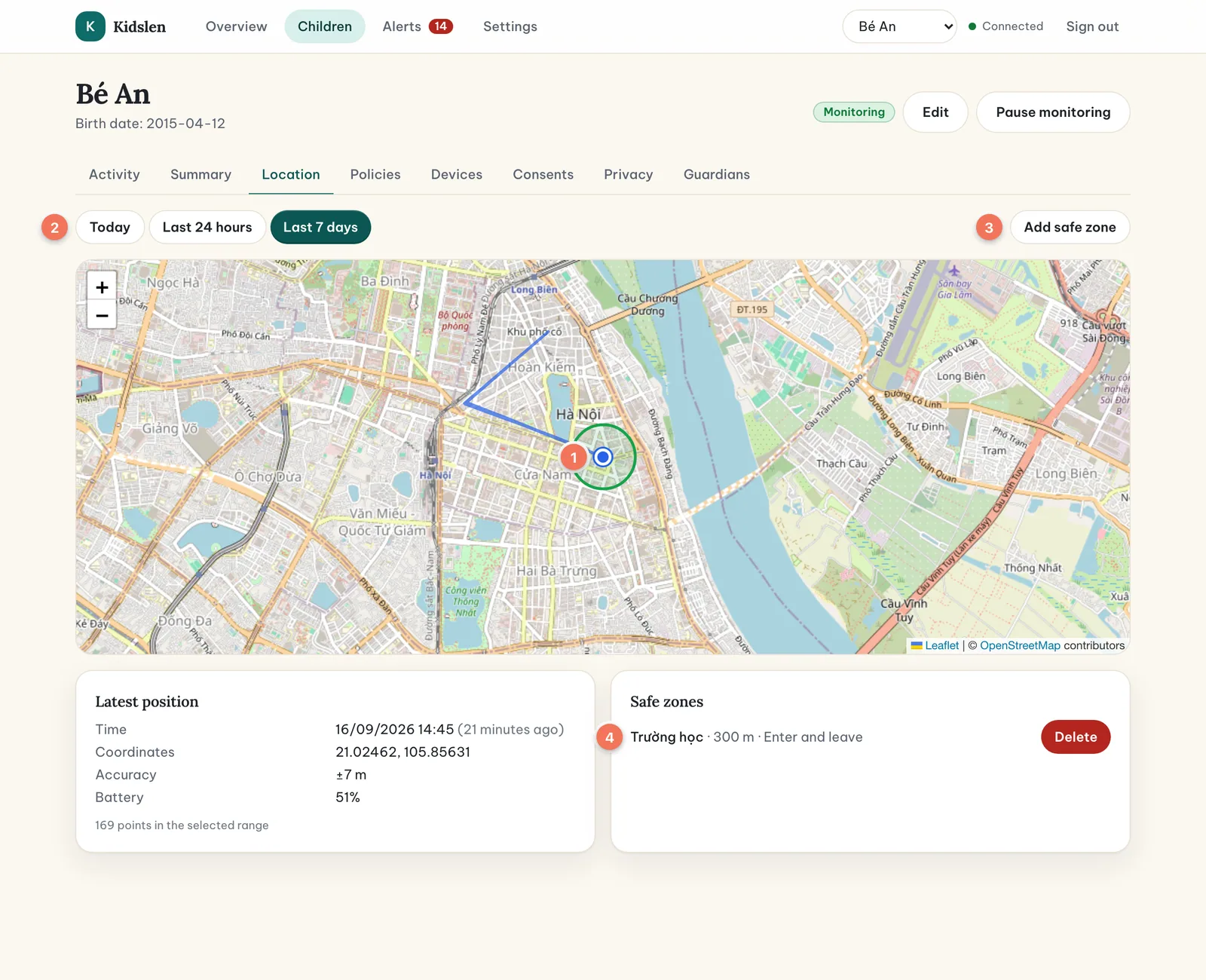
- Latest position — the blue marker. Click it for the time, accuracy and battery level; the card below the map repeats them with the coordinates and the number of points in the selected range.
- Trail — the blue line joins the points of the selected range: Today, Last 24 hours or Last 7 days. Accuracy depends on the phone; indoors, expect a few dozen metres.
- Safe zones — the green circles. Each one is a policy of the type “Safe zone”; a disabled zone is drawn in grey.
Add a safe zone
- Step 1: Choose Add safe zone, then click on the map where the centre should be — the school gate, grandma’s house, the sports club.
- Step 2: Give the zone a name and a radius between 50 and 5000 metres (200–300 m suits a school), and choose whether to be alerted on Enter, Leave or both. Choose Create.
- Step 3: The zone appears on the map and in the list. You can also create or edit it from the Policies tab, where it is the policy type “Safe zone” with the latitude and longitude typed in by hand.
Kidslen compares each new position with the previous one from the same phone. When the phone crosses the edge of a zone in the direction you chose, you get an “Entered safe zone” or “Left safe zone” alert that names the device and the zone. The very first point never raises an alert, and a phone that stays inside all day raises none.
Turning it off
Revoke the location consent on the Consents tab. The server refuses new positions from that moment, the child’s transparency screen shows location sharing as off, and the history you already have stays visible with a “consent revoked” badge until it expires. Location points are kept for 30 days, are part of the child’s JSON export, and are deleted together with the child profile.
9 / 14
Alerts and notifications
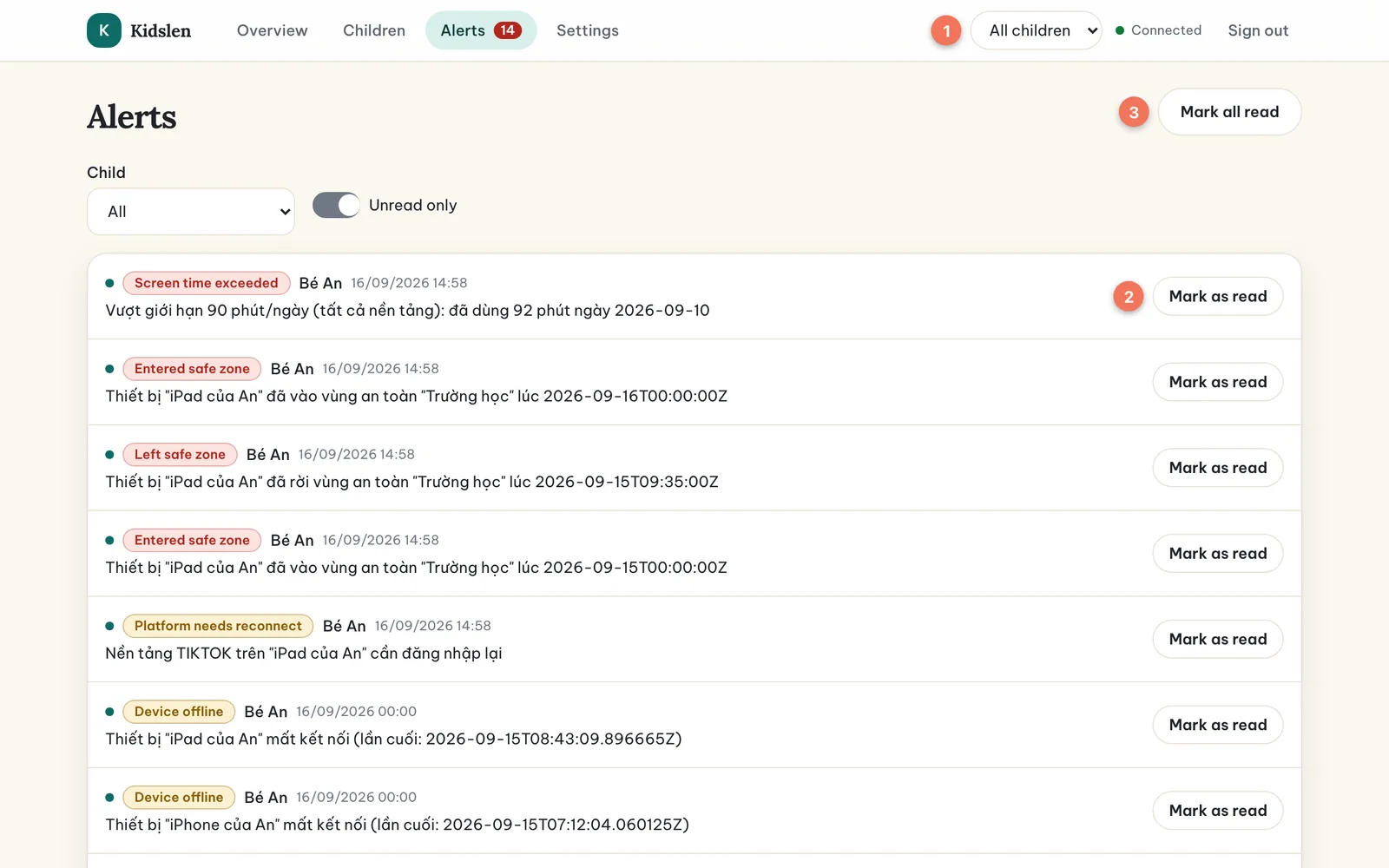
Alerts tell you that something you asked to be told about has happened. They appear in the Alerts page, as a red counter in the top bar, and as an on-screen notification while the dashboard is open. If the Kidslen app is installed on your own phone with notifications allowed, you also get a push notification.
| Alert | Meaning |
|---|---|
| Screen time exceeded | The daily limit of a screen-time policy was passed. |
| Blocked platform used | Activity was recorded on a platform you blocked. |
| Keyword match | A title or search query contained one of your keywords. |
| Bedtime violation | Activity was recorded inside the bedtime window. |
| Device offline | A device has not checked in for more than 30 minutes. |
| Platform needs reconnect | A connected platform signed the session out; reconnect it on the phone. |
| Entered safe zone | The phone entered a safe zone that alerts on Enter. |
| Left safe zone | The phone left a safe zone that alerts on Leave. |
- Step 1: Open Alerts in the top bar. Use the Child filter (1) to see one child, and “Unread only” to hide what you already handled.
- Step 2: Each alert shows its type, the child, the time and a message with the details — for example the title that matched a keyword.
- Step 3: Choose “Mark as read” (2) on an alert once you have dealt with it, or “Mark all read” (3) to clear the list.
10 / 14
Devices management
The Devices tab of a child lists every enrolled phone or tablet with its name, operating system, app version, when it was enrolled and when it was last seen. A device counts as online when it has checked in within the last ten minutes. Below the name you see the status of each platform on that device: Connected, Disconnected or Needs reconnect.
- A child can have several devices — for example a phone and a tablet. Each is enrolled with its own code.
- Remove device revokes the device’s access immediately. The app on that device shows “This device was removed” and stops sending data. To use it again, enroll it with a new code.
- If the child unenrolls from the app’s Settings, the device goes offline and you receive a “Device offline” alert after 30 minutes.
11 / 14
Co-guardians
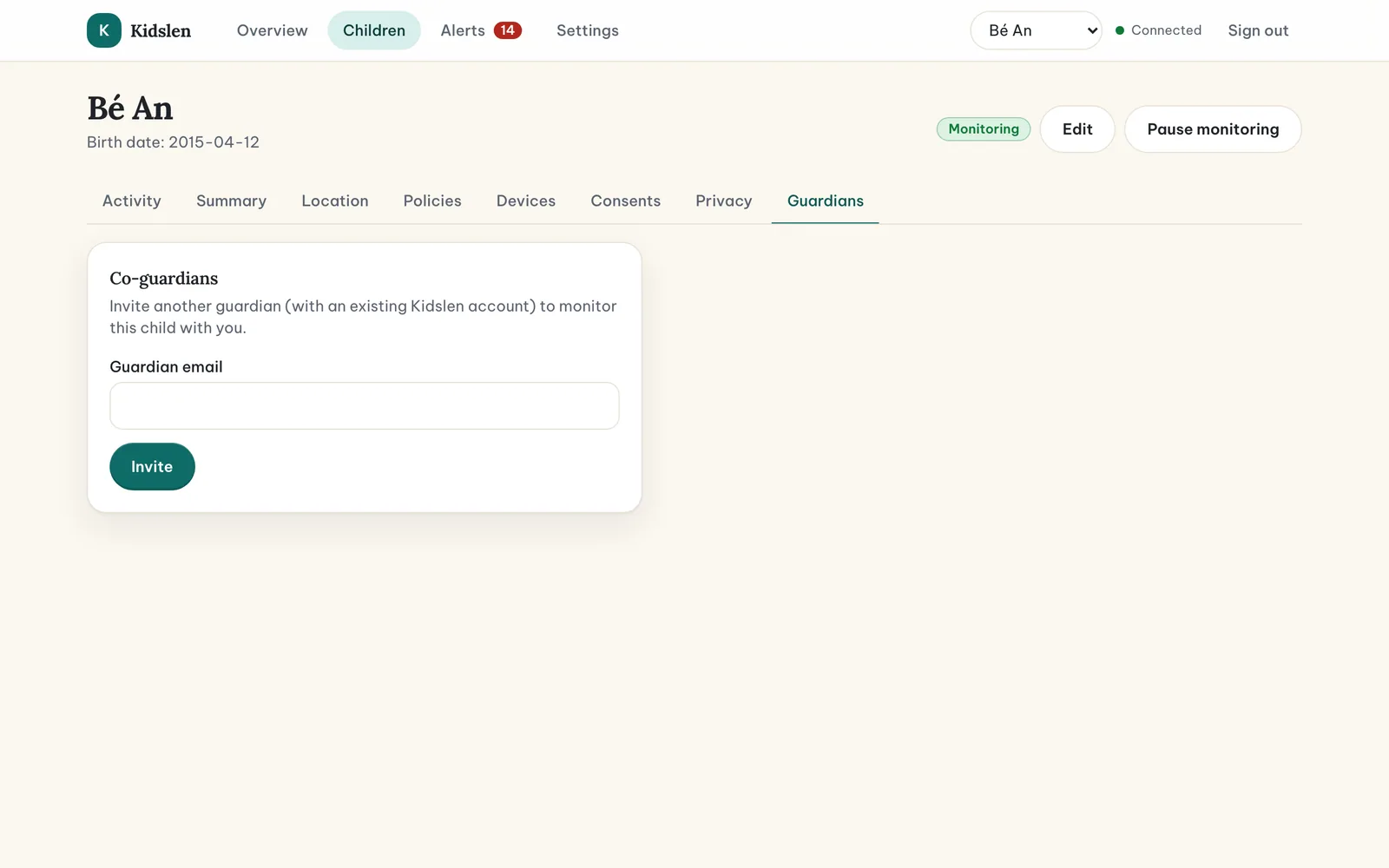
Two parents, or a parent and a grandparent, can share a child. Each guardian signs in with their own account and sees the same activity, policies and alerts.
- Step 1: Ask the other guardian to create their own Kidslen account first (see Create a parent account).
- Step 2: Open the child’s Guardians tab, enter the other guardian’s email address and choose Invite.
- Step 3: The child appears in the other guardian’s dashboard right away. Both of you can manage policies and devices; the audit log records who changed what.
12 / 14
Privacy tools
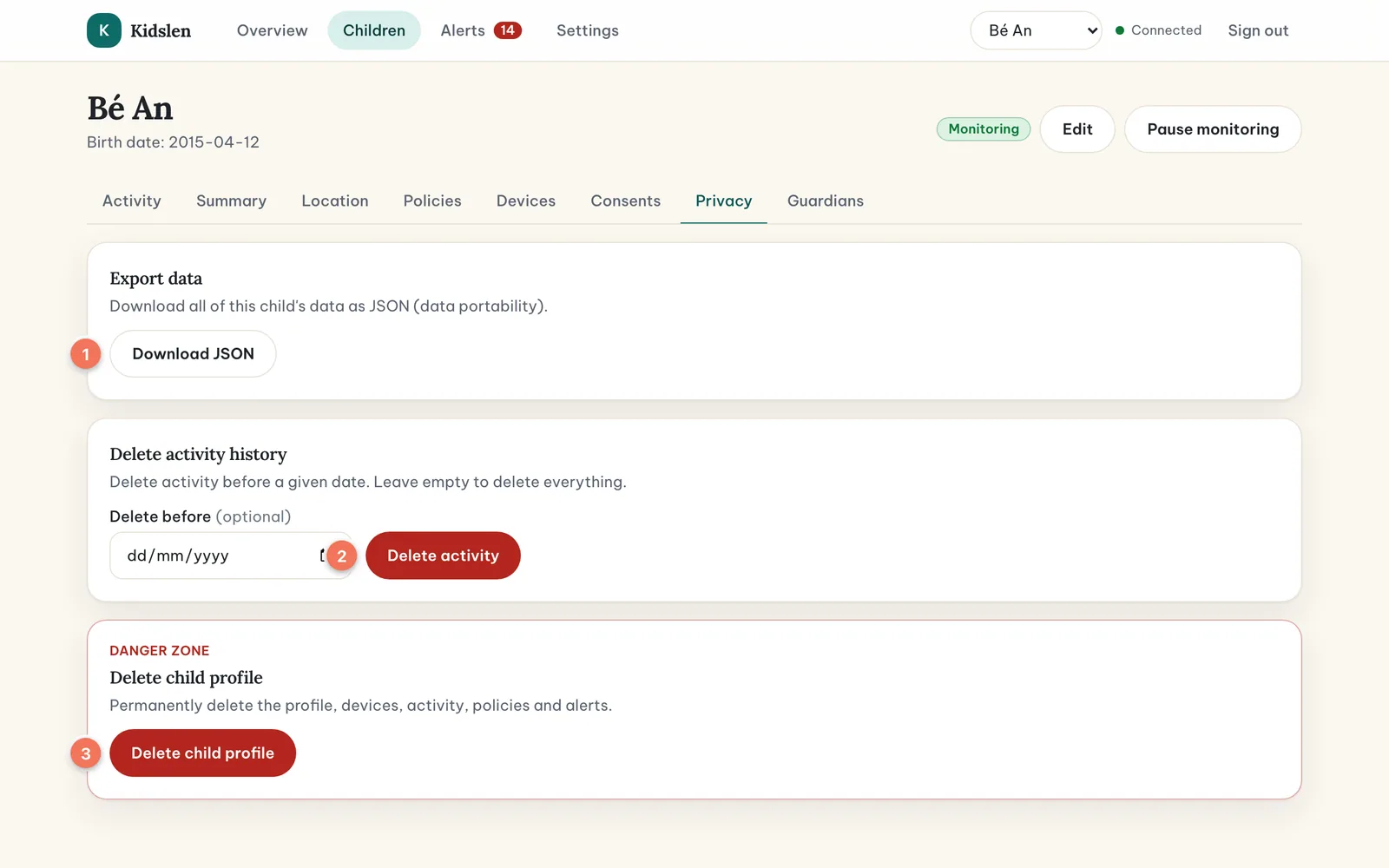
Your family’s data belongs to you. The Privacy tab of each child gives you three tools; all of them take effect immediately and are written to the audit log.
Export
Choose Download JSON to get everything Kidslen holds about the child — profile, devices, activity, location history, policies, alerts and consent records — as a single JSON file. Use it to keep your own copy or to move to another service.
Delete activity history
Delete activity before a date you choose, or leave the date empty to delete all of it. Policies, devices and consents are kept. This cannot be undone.
Delete the child profile
This removes the profile together with its devices, activity, location history, policies, alerts and consents. Type the child’s name to confirm. Enrolled devices lose access at once, and the companion app shows that the device was removed.
Retention
You do not have to clean up by hand. Activity is kept for 90 days, location points for 30 days, alerts for 180 days and the audit log for 365 days; raw sync data is discarded 7 days after it has been processed.
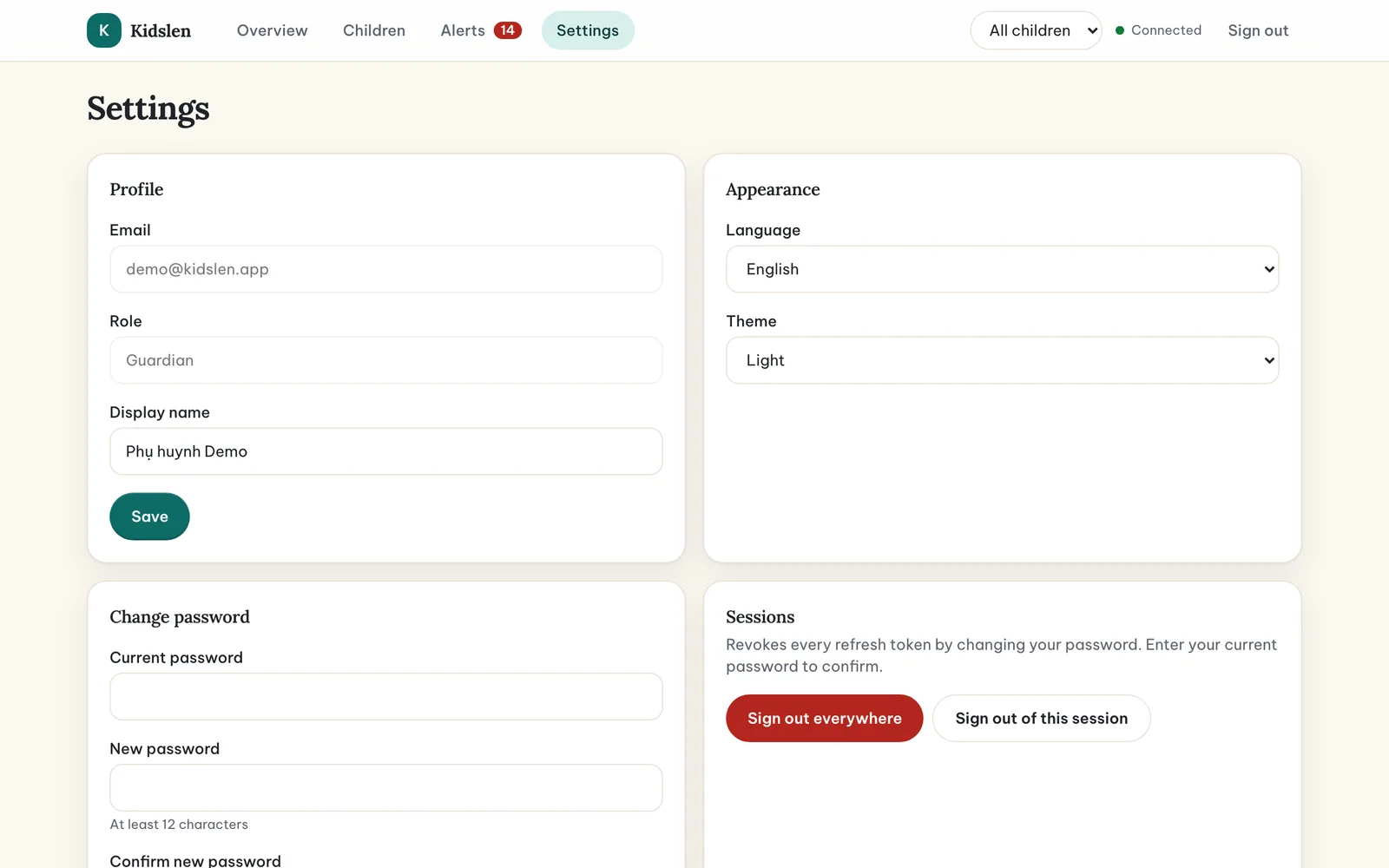
Your own account can be managed from Settings: change your display name, language, theme or password, and sign out of every session. To delete your account entirely, delete your children’s profiles first and then contact us.
13 / 14
Ops console (administrators only)
Kidslen administrators — the people who operate the service — have a separate operations console. It is not needed for day-to-day family use, and parents never see it; this short section only explains what it is.
- Overview — system status, ingest queue, processor throughput, devices online, alerts, JVM and HTTP indicators, refreshed live.
- Devices — every enrolled device across all families with last heartbeat and platform statuses.
- Errors — sync batches that could not be processed (dead-letter), with a retry action.
- Audit log — sign-ins, policy changes, enrollments, exports and deletions, with who did what and when.
- Health, Metrics and Alert rules — for on-call use; metrics are also exposed to Prometheus and Grafana.
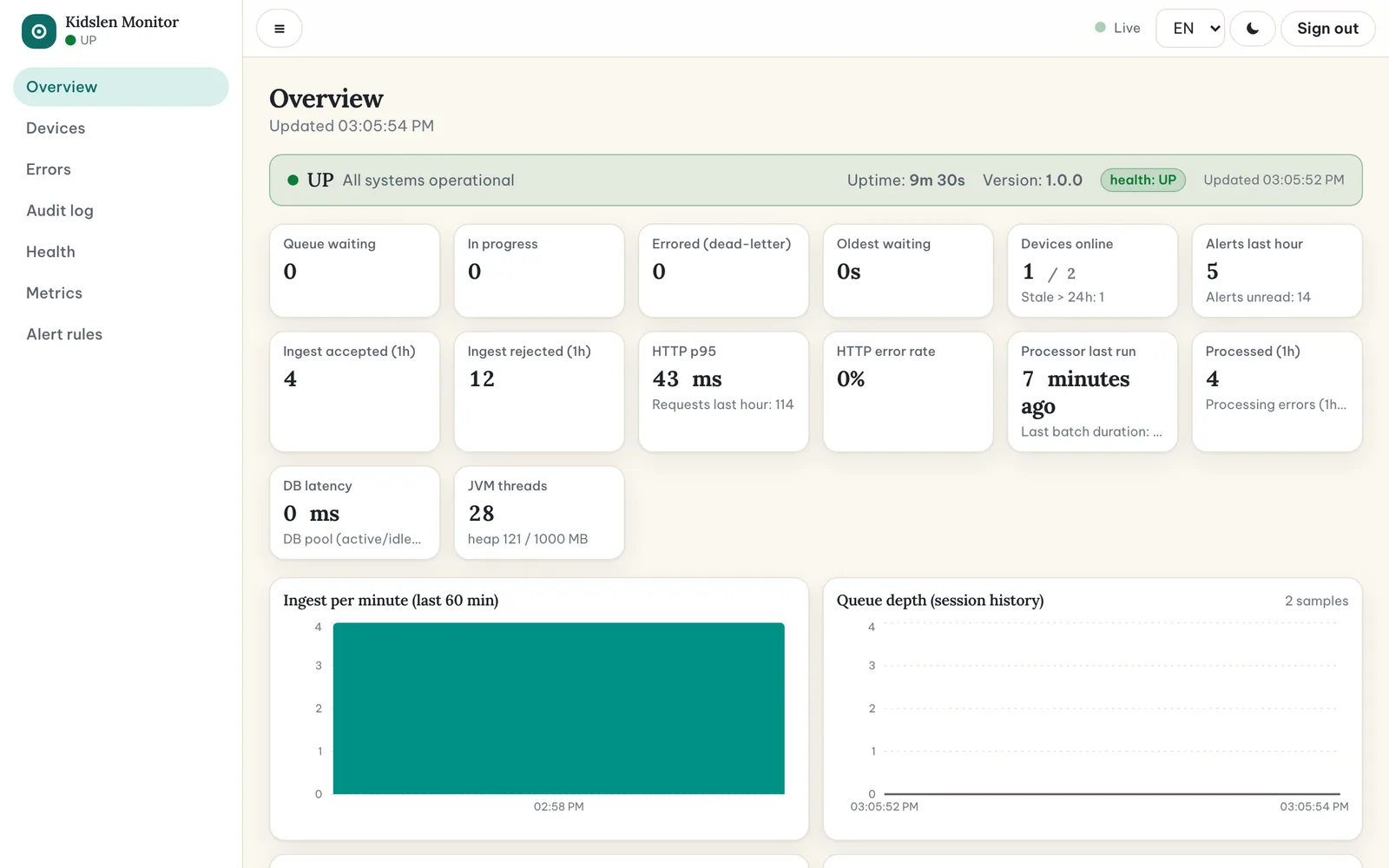
Administrators also see two extra pages in the parent dashboard: “Platforms & scripts”, to update the platform connection scripts without releasing a new app, and “Raw events”, to inspect and retry failed sync batches.
14 / 14
Troubleshooting and FAQ
The enrollment code says it is invalid or expired.
Codes last 15 minutes and work once. Generate a new code in the Devices tab and enter it again. Make sure the phone has an internet connection.
The device shows as offline.
The phone has not checked in for more than ten minutes. Usually it is asleep, has no connection, or background refresh was turned off. Open the Kidslen app on the phone and tap “Sync now”; check Settings → Permissions in the app to allow background refresh and notifications.
Nothing appears in the live feed.
The app syncs every 30 minutes by default, so a delay is normal. Tap “Sync now” in the app to send immediately. If the dashboard shows “Reconnecting” in the top bar, wait a moment or reload the page.
A platform says “Needs reconnect”.
The platform signed the session out (this happens after password changes or periodically). On the phone, tap Reconnect next to the platform and sign in again.
I got “Too many requests”.
Sign-in and registration are rate-limited to protect accounts. Wait the number of seconds shown and try again.
My account is locked.
After five wrong passwords the account is locked for 15 minutes. Wait, then sign in again or use “Forgot password?”.
I was signed out unexpectedly.
Sessions expire after a period of inactivity, and changing your password ends every other session. Sign in again.
The Activity tab is empty for today.
Check the date range at the top of the tab and that the child’s device is online and has connected platforms. Activity older than the retention period is removed automatically.
Can my child turn Kidslen off?
The child can always see what is collected and can unenroll the device from the app’s Settings — you would then get a “Device offline” alert. Kidslen deliberately does not fight the child; talk about it instead.
The Location tab says “No location data”.
Location is collected only while a “Consent to location sharing” record is active on the Consents tab, and only from a phone that has granted the location permission to the Kidslen app. After recording the consent, wait for the phone’s next check-in or tap “Sync now” in the app.
Does Kidslen work without the companion app?
No. The app is what reads the watch history on the child’s phone, and it is also what shows the child the transparency banner.
Still stuck? Write to us — mention “support” in the subject line and include the request id shown in the error message, if there is one.